

You turned your PowerPoint into a video, recorded a voice-over and polished every slide. Three minutes in, your learners are checking their phones. The substance of your course is rarely to blame. Learners drift away because of the demands the screen and the voice place on their attention at the same time.
By the end of this article, you will be able to:
- Spot the eight pitfalls that make learners drift away from a training video built from slides and a voice-over.
- Build a slide that the voice-over complements rather than repeats.
- Set the pace of your animations and choose the voice for your video.
Why do learners drift away from a training video?
Learners drift away from a training video when it asks for more attention than they have. Researchers call this cognitive overload: our working memory can only consciously handle a small number of new elements at a time. Beyond that, the information passes by without sinking in. Cognitive load theory, put forward by the psychologist John Sweller in 1988, turned this into a principle of instructional design.
Every one knows what attention is. [...] It implies withdrawal from some things in order to deal effectively with others.
In our studio, we prefer a metaphor that speaks more clearly than any diagram: attention is a theatre stage, and the spotlight only lights a small part of it at a time. Whatever falls outside the beam goes dark. Designing a training video is therefore a director’s job: deciding what goes into the light, and when.

- Remove whatever has no role in the scene: decoration, logo, duplicated text.
- Bring in one element at a time, at the moment the voice introduces it.
- Let it breathe between two ideas, so the first settles in before the next.
This is our craft. In our studio, on a fifteen-module course narrated by a synthetic voice, every video is built around the voice-over, not the other way round. Bullet points appear on the exact word, as the voice-over introduces them. Every chapter closes on summary slides. These are the techniques we share with you here, in full detail.
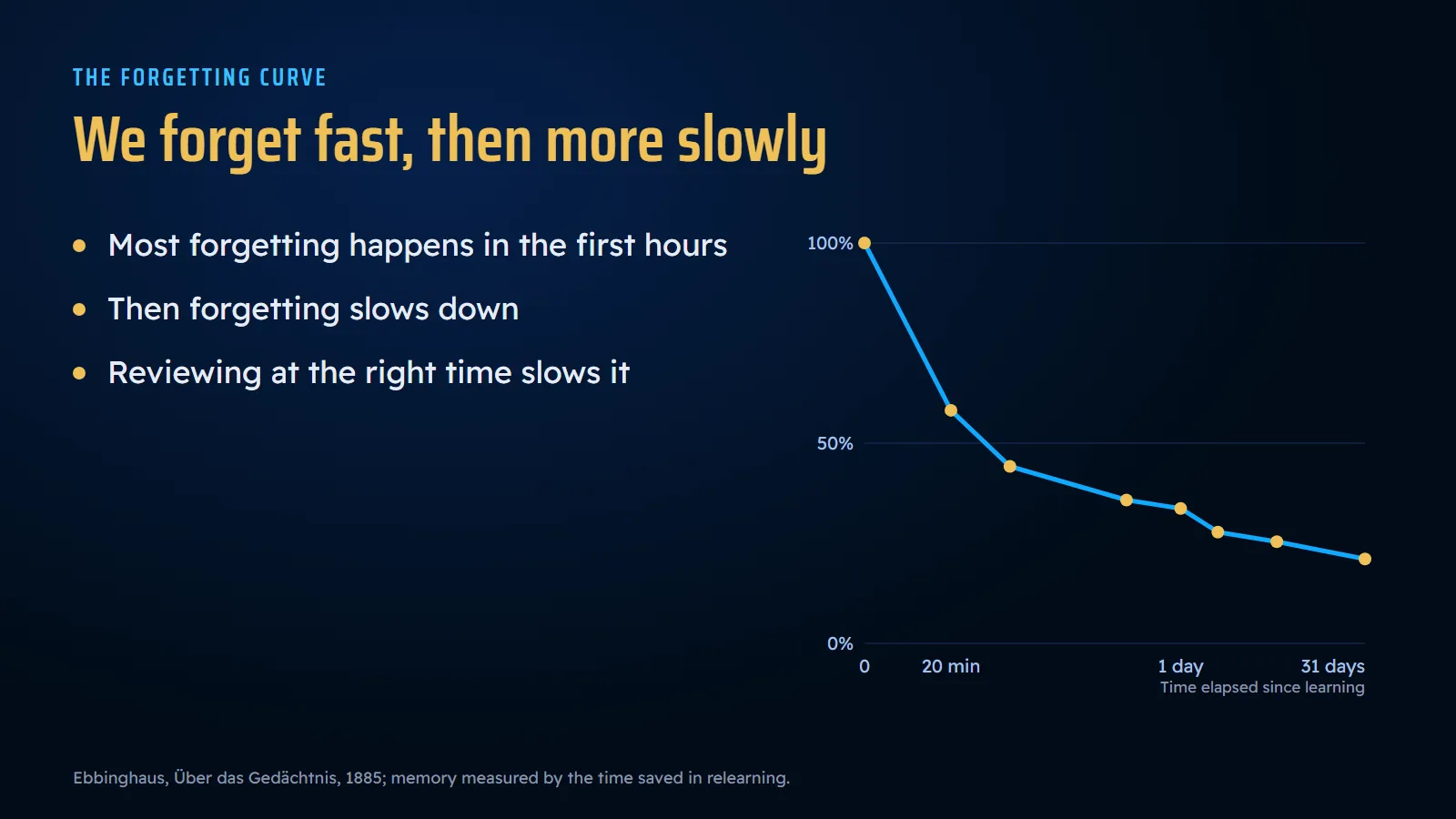
To make them visible, we built a small demonstration module on a topic every trainer should know: the forgetting curve. In 1885, the German psychologist Hermann Ebbinghaus learned lists of nonsense syllables by heart. Then he measured the time he saved relearning them twenty minutes, an hour, a day or a month later. His conclusion: forgetting is steep in the first hours, then it slows down. So you will learn two things in this article, and we hope you will forget the second one more slowly than expected.
What should the screen show while the voice speaks?
While the voice speaks, the screen should show what the voice cannot say: a curve, a diagram, two or three keywords. Anything that repeats the voice or competes with it takes up attention without adding anything.

I would, also, have his friends solicitous to find him out a tutor, who has rather a well-made than a well-filled head.
Montaigne asked it of the tutor; we ask it of the slide: well made rather than well filled.
Pitfall 1: reading on screen what the voice is already saying
This is the most common pitfall, and it comes from a good intention: writing everything down so nothing gets lost. The problem is that learners read faster than the voice speaks. They reach the end of the paragraph, wait for the voice lagging behind, then drift away out of boredom. Richard Mayer studies multimedia learning at the University of California. He calls this the redundancy effect: people do not learn better when printed text saying the same thing is added to the pictures and the narration.
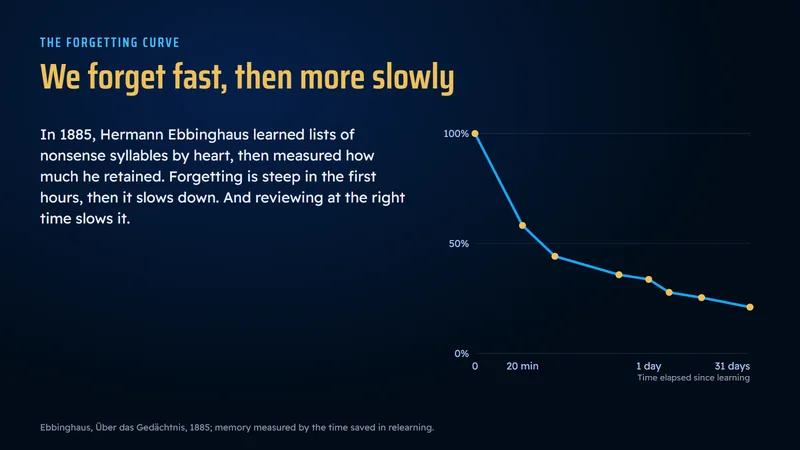
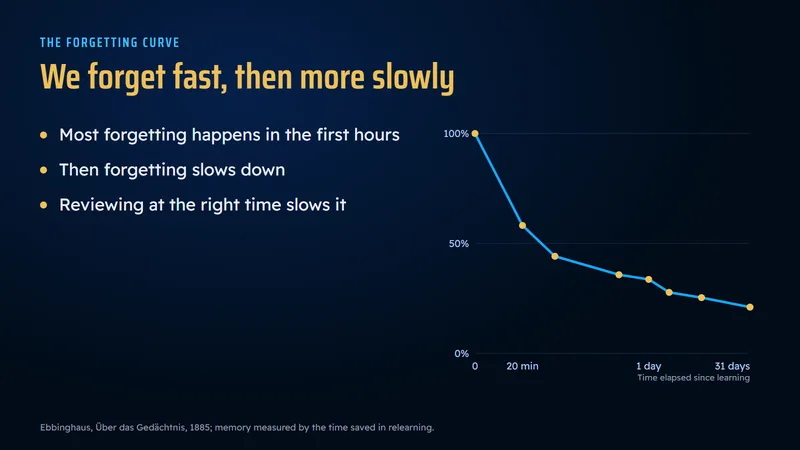
The effect only concerns on-screen text that repeats the narration word for word. According to Mayer and Fiorella, it disappears when the on-screen text is short. In our studio, each slide therefore contains bullet points that are only a few words long, and the voice does the explaining.
For example: a safety trainer writes “Switch off the power before starting work” and lets the voice explain why, instead of displaying the four lines of the regulation.
The overcorrection to avoid: removing everything. An empty slide forces learners to remember everything by ear; three keywords give them a handrail.
Pitfall 2: burned-in subtitles on a slide that is already full of text
In a slide-based video, burned-in subtitles add a third thing to read on screen: the title, the bullet points, and now the spoken sentence scrolling along the bottom. The eye goes back and forth and no longer knows where to rest. It is the same mechanism as pitfall 1, only more visible.
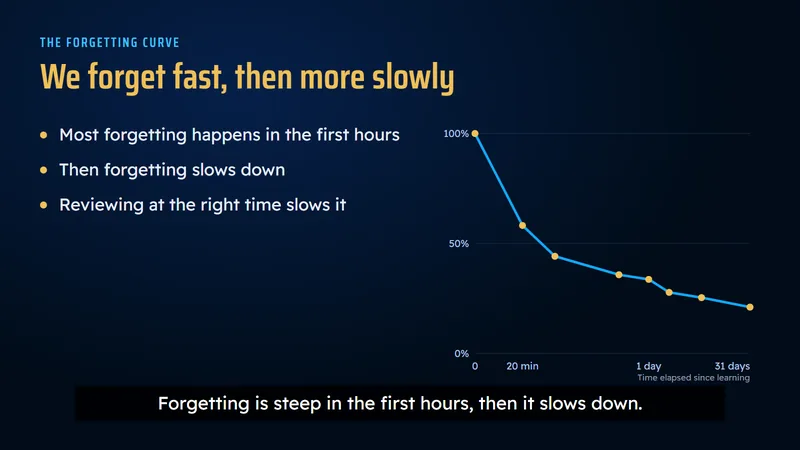
Should you drop subtitles altogether? Certainly not: for a deaf or hard-of-hearing learner, they are essential. In France, the law requires certain organisations to provide them: public services, large companies, and certain services provided since 28 June 2025. The rule we apply: subtitles offered for learners to turn on if they need them, never burned into the image.
For example: on your learning platform or on YouTube, upload a separate subtitle file rather than exporting a video with the subtitles burned in.
Pitfall 3: the overloaded slide
Seven bullet points, a logo, an icon, a “Did you know?” box, a footer banner. Each element looks useful on its own; together, they pull the spotlight in every direction. Mayer calls this the coherence principle: people learn better when extraneous material is excluded rather than included.
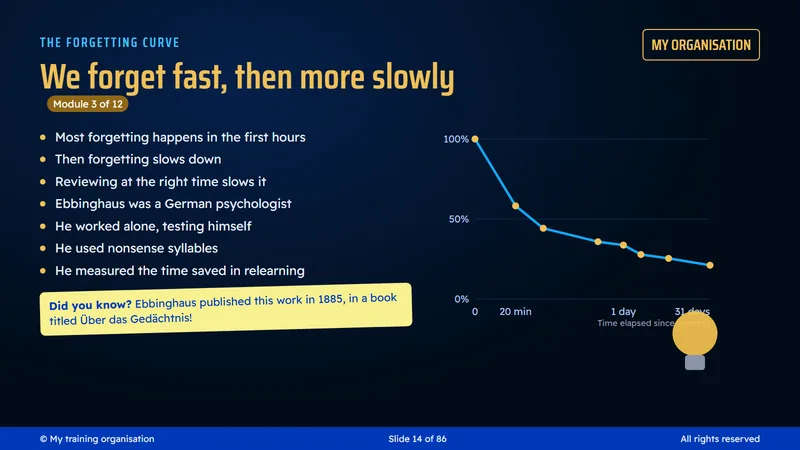
In our studio, content slides carry three or four bullet points. When an idea needs more, it deserves a second slide, not a smaller font. And the logo? It belongs on the title slide and the last one, not on the eighty in between.
For example: “Did you know?” facts fit perfectly in the workbook or in the end-of-module quiz, where they compete with nothing.
Pitfall 4: the image that decorates instead of explaining
This is the most elegant pitfall, because the image is often very beautiful. Does a thoughtful woman at her window illustrate the forgetting curve? She says nothing about the curve. The eye stops on her, admires her, and the idea passes unnoticed.
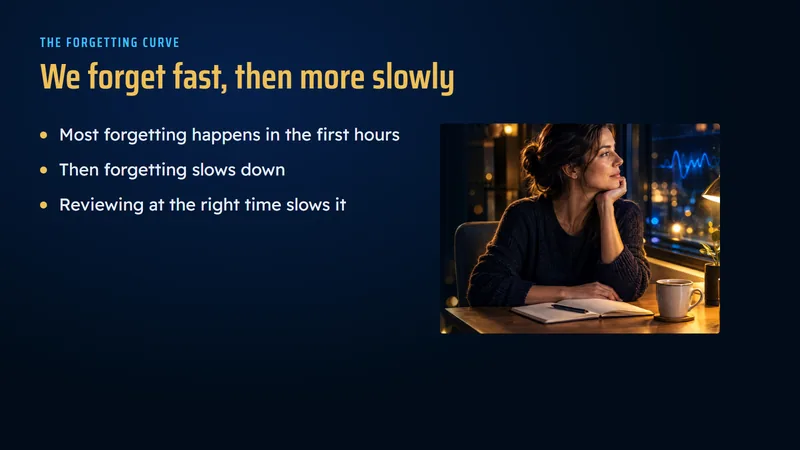
People learn better from words and pictures than from words alone.
The picture still has to carry the idea. In our studio, every important concept gets its own infographic, and every case study gets its photo-story scenes, with the characters and the situation the voice is talking about. For each image on your slides, ask yourself a simple question: “If I remove it, does the learner lose anything?” If the answer is no, the image can go.
For example: in a module on welcoming customers, a handshake photo decorates; a diagram of the three steps in welcoming a customer explains.
When should each element of a slide appear?
Each element of a slide should appear at the moment the voice introduces it, no sooner and no later. Arriving at the wrong moment, even the right content makes learners drift away.

Pitfall 5: showing everything at once
All three bullet points arrive with the slide. Learners read them all while the voice is still commenting on the first one: their eyes are on the third idea, their ears on the first, and their attention is scattered. Mayer calls this temporal contiguity: people learn better when corresponding words and pictures are presented at the same time.
In our studio, each bullet point appears on the exact word, as the voice-over introduces it. In PowerPoint, setting this up involves two menus: each bullet point gets its entrance animation, triggered “On Click” or “After Previous”, and you match the moment each one appears to the recorded voice. It takes a little patience the first time; after that, it becomes a habit.
For example: the voice says “First response: switch off the power”, and the bullet point “Switch off the power” appears on “switch”, not thirty seconds earlier.
Pitfall 6: the image frozen for too long
Conversely, the same slide can stay frozen while the voice moves through three ideas. The eye has nothing left to follow, so it goes looking elsewhere, often at a phone. We measure the pace in ideas rather than seconds: every new idea introduced by the voice-over is accompanied by a change on screen, whether a bullet point appearing, a word lighting up or a new slide.
A word of caution, though: more movement is not enough. A study published in 2025 in Educational Technology Research and Development compared static and animated slides, all with a voice-over, among 312 student teachers: the animations alone did not improve learning. What helped were the cues showing where to look. A change on screen is useful when it points to the idea at hand.
Pitfall 7: moving on without a pause
A chapter ends, and the next one starts in the same second. Learners have not had time to process the first idea before they are handed another. Mayer calls this segmenting: people learn better from segments than from one continuous block.
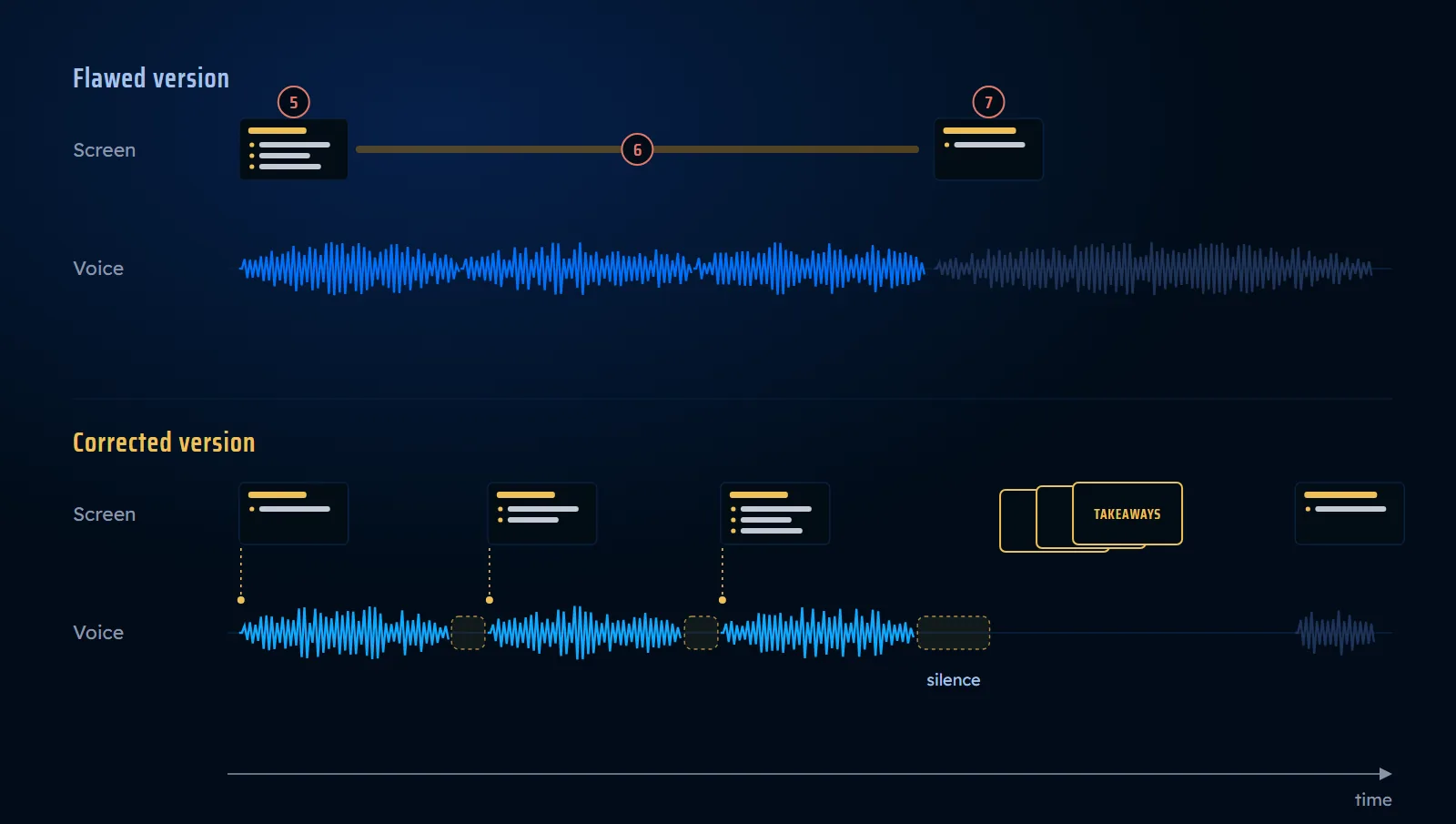
- Pitfall 5, all at once the three bullet points arrive before the voice introduces them.
- Pitfall 6, the frozen image the screen stops moving while the voice moves through three ideas.
- Pitfall 7, no pause the next chapter starts in the same second.
- Corrected version one bullet point per idea, on the exact word, a pause between ideas, then the summary before the next chapter.
In our studio, every content chapter closes the same way: two seconds of silence, then five silent “Key takeaways” slides, eight seconds each. Silent, because this is when learners reread and consolidate what they have learned, with no voice to rush them. Between two sentences, the voice breathes too: we leave at least one second of silence, enough time for the idea to land.
And the total length? In 2014, Guo, Kim and Rubin studied 6.9 million video-viewing sessions on the edX platform. Median engagement time topped out at about six minutes, whatever the length of the video. Their recommendation: cut videos into segments of under six minutes. The study measures attention, not learning, but the signal is clear.
Which voice-over should you choose for a training video?
For a training video, choose a voice that carries the intent of the text and suits your audience. A monotonous voice puts people to sleep; a voice that does not match the topic distracts them.

Pitfall 8: the monotonous voice, or one that does not suit its audience
A voice can have a magnificent tone and put a whole room to sleep. What matters is the melody of the sentence: the stress on important words, the rises and falls, the pauses. Without them, every idea carries the same weight, and the ear stops sorting them.
Listen to the same sentence from our demonstration, spoken three times. The three clips were created for this article. All three were generated with Chatterbox, an open-source speech engine that runs on our workstation. The first two use the same voice; the third uses another voice.
Should you avoid synthetic voices, then? Not at all. Mayer recommends a human voice rather than a machine voice. But in 2017, a study by Craig and Schroeder showed that a modern synthetic voice was rated on a par with a human voice, for learning as well as for credibility. How the voice delivers the text therefore matters more than how it was made.
The rule: before choosing a voice, listen to a full minute of it, with your audience in mind. A deep, calm voice suits a compliance module; the same voice can sound icy in a module on welcoming children. And if your synthetic voice stumbles on certain sentences, the problem often lies in the text: our article on seven writing pitfalls to avoid when scripting an AI voice-over (in French) shows you how to write for the ear.
The overcorrection to avoid: overacting. A voice that forces enthusiasm into every sentence tires people as quickly as a flat one.
The eight pitfalls at a glance
| Pitfall | What we do | What happens | How to fix it |
|---|---|---|---|
| 1. Copied text | Show the script on screen | Learners read faster than the voice, then drift away | A few keywords; the voice-over explains |
| 2. Burned-in subtitles | Burn the subtitles into the image | Three texts compete for the eye | Subtitles that learners turn on |
| 3. Overloaded slide | Add a logo, boxes, icons | The spotlight goes in every direction | Four bullet points at most, nothing extraneous |
| 4. Decorative image | Illustrate with a beautiful photo | The eye stops, the idea goes by | An infographic that conveys the concept |
| 5. All at once | Show every bullet point with the slide | The eye runs ahead of the voice | One bullet point on the exact word |
| 6. Frozen image | Keep the same screen for several ideas | The eye goes looking elsewhere | One change per idea |
| 7. No pause | Move from chapter to chapter without a break | Nothing has time to settle in | Silence, then a silent summary |
| 8. Monotonous or mismatched voice | Keep the first voice that comes along | Listeners stop distinguishing ideas | Listen for a full minute with your audience in mind |
- The text does the screen show a few keywords, and not the script?
- The subtitles are they offered as a separate file, and not burned into the image?
- The slide does it contain no more than four bullet points, with nothing extraneous?
- The images do they explain something, or do they decorate?
- The animations does each bullet point arrive when the voice introduces it?
- The pace does each new idea bring a change on screen?
- The pauses is there a pause between ideas and a summary at the end of each chapter?
- The voice have you listened to a full minute of it, with your audience in mind?
Your action for today: open your latest training video, run it through the checklist, and fix the first pitfall you find. If you would rather hand this work over, it is exactly what we do with our turnkey e-learning courses. The slides are built around the voice-over, the animations are matched to the exact word, and every video is checked before delivery. For the voice itself, our voice-over and narration service is ready for you. For infographics that explain, explore our motion design service.
FAQ
How do you turn a PowerPoint into a video?
In PowerPoint, select File, then Export, then Create a Video to produce an MP4 file. By default, each slide stays on screen for five seconds; if you have recorded a narration and timings, choose “Use Recorded Timings and Narrations”, otherwise your animations will not follow the voice. Microsoft’s help page explains each setting.
How long should a training video be?
Aim for segments of under six minutes. That is the recommendation of the study by Guo, Kim and Rubin, based on 6.9 million video-viewing sessions: beyond that, median engagement stops rising. A one-hour module is therefore cut into about ten short videos.
Should a training video have subtitles?
Yes, as optional subtitles that learners can turn on, rather than subtitles burned into the image. They are essential for deaf or hard-of-hearing learners, and in France the accessibility framework, the RGAA, requires them for the videos of organisations covered by the law. For everyone else, it is a matter of respect for all learners.
What are Mayer’s principles?
They are design rules drawn from Richard Mayer’s research on multimedia learning, gathered in his book Multimedia Learning. Six of them shape this article: redundancy, coherence, signalling, temporal contiguity, segmenting and the multimedia principle.
Sources
- John Sweller, “Cognitive Load During Problem Solving: Effects on Learning”, Cognitive Science, 12(2), pp. 257-285, 1988, DOI 10.1207/s15516709cog1202_4.
- Richard E. Mayer, Multimedia Learning, 3rd edition, Cambridge University Press, 2020, DOI 10.1017/9781316941355.
- Richard E. Mayer, “The Past, Present, and Future of the Cognitive Theory of Multimedia Learning”, Educational Psychology Review, 36, article 8, 2024, DOI 10.1007/s10648-023-09842-1; definitions of the principles, table 6.
- Richard E. Mayer and Logan Fiorella, “Principles for Reducing Extraneous Processing in Multimedia Learning”, The Cambridge Handbook of Multimedia Learning, 2nd edition, pp. 279-315, 2014, DOI 10.1017/CBO9781139547369.015.
- Katharina Reuter, Marta Lazzara, Manuela Leuchter, “Static, dynamic, or human? The role of slide dynamics and instructor cues in video lectures”, Educational Technology Research and Development, 74, pp. 469-492, 2025, DOI 10.1007/s11423-025-10572-0.
- Philip J. Guo, Juho Kim, Rob Rubin, “How video production affects student engagement: An empirical study of MOOC videos”, Proceedings of the First ACM Conference on Learning @ Scale, pp. 41-50, 2014, DOI 10.1145/2556325.2566239.
- Scotty D. Craig and Noah L. Schroeder, “Reconsidering the voice effect when learning from a virtual human”, Computers & Education, 114, pp. 193-205, 2017, DOI 10.1016/j.compedu.2017.07.003.
- Hermann Ebbinghaus, Über das Gedächtnis, 1885; English translation Memory: A Contribution to Experimental Psychology, 1913, online text, chapter 7.
- William James, The Principles of Psychology, 1890, chapter XI, online text.
- Montaigne, Essays, book I, chapter 26, “Of the Education of Children”, translated by Charles Cotton, 1685, online text (numbered chapter 25 in this edition).
- French government digital agency (DINUM), scope of digital accessibility obligations (law no. 2005-102, article 47; law no. 2023-171) and RGAA 4.1.2, criterion 4.3, accessed on 30 September 2026.
- Microsoft, “Turn your presentation into a video” and “Set the start time and speed of an animation effect”, accessed on 2 October 2026.
- OpenAI, Whisper, code and models under the MIT licence.
- Resemble AI, Chatterbox, speech synthesis engine under the MIT licence.
- Ali Prod studio, method for building module videos (word-level synchronisation, “Key takeaways” slides, completeness check by transcription) on a fifteen-module course; demonstration slideshow, images and audio clips created for this article.